

目录
一、进程管理
二、系统信息
三、关机 (系统的关机、重启以及登出 )
四、文件和目录
五、文件搜索
六、挂载一个文件系统
七、磁盘空间
八、系统负载 -- top
九、用户和群组
十、文件的权限 - 使用 "+" 设置权限,使用 "-" 用于取消
十一、文件的特殊属性 - 使用 "+" 设置权限,使用 "-" 用于取消
十二、打包和压缩文件
十三、OS包管理器
①、RPM 包 - (Fedora, Redhat及类似系统)
②、YUM 软件包升级器 - (Fedora, RedHat及类似系统)
③、DEB 包 (Debian, Ubuntu 以及类似系统)
④、APT 软件工具 (Debian, Ubuntu 以及类似系统)
十四、文本查看、处理
①、查看文件内容
②、文本处理
十五、vim专题
①、大小写转换
②、字符串处理专题
③、vi中文本操作
④、vim基础操作
⑤、shell脚本中的注释(单行注释/多行注释)
十五、字符设置和文件格式转换
十六、文件系统分析
十七、初始化一个文件系统
十八、SWAP文件系统
十九、备份
二十、光盘操作
二一、网络 - (以太网和WIFI无线)
二二、JPS工具
二三、crontab调度器
①、语法
二四、Shell编程相关
①、内置变量
②、数据结构
1、数组
for i in in {1..10}; do rm -f hadoop-cmf-hive-HIVEMETASTORE-nn1.testhdp.com.log.out.$i;done
2、字典dict 或 Map
3、管道输出中执行下一条指令
4、循环、迭代逻辑控制
5、break 与 contine区别
6、大文件拆分处理
7、awk
8、实现脚本中切换用户并执行该用户相关的命令操作
③、echo在shell中控制颜色&闪烁显示
1、在shell中显示色彩
二十五、程序开机自启动服务配置
二十六、持续监控Linux命令的执行情况
Linux和windows相比,很多管控都需要用命令来操作。windows以直观的可视化的方式操作,特别适合在桌面端PC上操作执行相应的软件。
而Linux命令行方式的操作,特别是在服务器端编程、管理、运维方面,更加简单、短小、精悍。短短一行组合命令,即可完成在windows需要各种加工、整合的复杂高效的功能操作。
pkill -kill -t pts/?? 杀掉指定名字的进程,如上述的pts/5
传送门:Linux中Kill进程的N种方法
ctime=`date +%Y-%m-%dT%k:%M:%S` #格式化时间,如2018-01-13T11:09:19, 注意%k 与 %H的区别,前者返回9,后者返回09.
查询网关地址(如将centos服务器网络获取类型由dhcp切换为static时,需要获取到ip及网关信息进行固化配置时会用到,如本地ip为10.34.0.123,则通过如下命令查询到网关为第一个3.254):
[root@file-server ~]# netstat -rnKernel IP routing tableDestination Gateway Genmask Flags MSS Window irtt Iface0.0.0.0 10.34.3.254 0.0.0.0 UG 0 0 0 enp3g010.34.0.0 0.0.0.0 255.255.252.0 U 0 0 0 enp3g0192.168.1.0 0.0.0.0 255.255.255.0 U 0 0 0 virbr0
CentOS / RedHat 系列,查看操作系统信息(如果没有lsb_release命令, 使用"yum install redhat-lsb"安装):
[root@server-test online]# lsb_release -aLSB Version: :core-4.1-amd64:core-4.1-noarchDistributor ID: CentOSDescription: CentOS Linux release 7.5.1804 (Core)Release: 7.5.1804Codename: Core
find / -name file1 从 '/' 开始进入根文件系统搜索文件和目录
find / -user user1 搜索属于用户 'user1' 的文件和目录
find /home/user1 -name *.bin 在目录 '/ home/user1' 中搜索带有'.bin' 结尾的文件
find /usr/bin -type f -atime +100 搜索在过去100天内未被使用过的执行文件
find /usr/bin -type f -mtime -10 搜索在10天内被创建或者修改过的文件
find / -name *.rpm -exec chmod 755 '{}' ; 搜索以 '.rpm' 结尾的文件并定义其权限 ^ find /tmp -name *.hprof -exec rm -f {} ;批量删除java堆栈.hprof文件
find / -xdev -name *.rpm 搜索以 '.rpm' 结尾的文件,忽略光驱、捷盘等可移动设备
locate *.ps 寻找以 '.ps' 结尾的文件 - 先运行 'updatedb' 命令
whereis halt 显示一个二进制文件、源码或man的位置
which halt 显示一个二进制文件或可执行文件的完整路径
grep -rn "query_string" * Linux目录下全局查找所有文件中是否包含指定字符串(-r:递归;-n:显示行号)
hdfs dfs -du /dw/default | sort -rn | head -n 10 | awk '{printf("%.2f %.2f %s ",$1/1024/1024/1024," "$2/1024/1024/1024," "$3)}' 查询hdfs文件系统中表文件大小,按从大到小的顺序排列(取前10列),单位GB
top命令显示不全,添加-w参数:
命令为:top -b -n 1-b为 批处理模式,-n为刷新的次数发现信息显示不全,最后man top,加一个参数w后,完全显示top -b -n 1 -w 512如果需要显示完整的COMMAND命令,使用top -c参数top -c -bw 500查看完整进程名, 按500个字符长度查看(这样基本可以查看到完整的命令)
其他参数列表,官方解释:
1. COMMAND-LINE OptionsThe command-line syntax for top consists of:-hv|-bcHiOSs -d secs -n max -u|U user -p pid -o fld -w [cols]The typically mandatory switch ('-') and even whitespace are completely optional.-h | -v :Help/VersionShow library version and the usage prompt, then quit.-b :Batch-mode operationStarts top in Batch mode, which could be useful for sending output from top to other programs or to a file. In this mode, top will not accept input and runs until the iterations limit you've set with the `-n' command-line option or until killed.-c :Command-line/Program-name toggleStarts top with the last remembered `c' state reversed. Thus, if top was displaying command lines, now that field will show program names, and visa versa. See the `c' interactive command for additional information.-d :Delay-time interval as: -d ss.t (secs.tenths)Specifies the delay between screen updates, and overrides the corresponding value in one's personal configuration file or the startup default. Later this can be changed with the `d' or `s' interactive commands.Fractional seconds are honored, but a negative number is not allowed. In all cases, however, such changes are prohibited if top is running in Secure mode, except for root (unless the `s' command-line option was used). For additional information onSecure mode see topic 6a. SYSTEM Configuration File.-H :Threads-mode operationInstructs top to display individual threads. Without this command-line option a summation of all threads in each process is shown. Later this can be changed with the `H' interactive command.-i :Idle-process toggleStarts top with the last remembered `i' state reversed. When this toggle is Off, tasks that have not used any CPU since the last update will not be displayed. For additional information regarding this toggle see topic 4c. TASK AREA Commands, SIZE.-n :Number-of-iterations limit as: -n numberSpecifies the maximum number of iterations, or frames, top should produce before ending.-o :Override-sort-field as: -o fieldnameSpecifies the name of the field on which tasks will be sorted, independent of what is reflected in the configuration file. You can prepend a `+' or `-' to the field name to also override the sort direction. A leading `+' will force sorting high tolow, whereas a `-' will ensure a low to high ordering.This option exists primarily to support automated/scripted batch mode operation.-O :Output-field-namesThis option acts as a form of help for the above -o option. It will cause top to print each of the available field names on a separate line, then quit. Such names are subject to nls translation.-p :Monitor-PIDs mode as: -pN1 -pN2 ... or -pN1,N2,N3 ...Monitor only processes with specified process IDs. This option can be given up to 20 times, or you can provide a comma delimited list with up to 20 pids. Co-mingling both approaches is permitted.A pid value of zero will be treated as the process id of the top program itself once it is running.This is a command-line option only and should you wish to return to normal operation, it is not necessary to quit and restart top -- just issue any of these interactive commands: `=', `u' or `U'.The `p', `u' and `U' command-line options are mutually exclusive.-s :Secure-mode operationStarts top with secure mode forced, even for root. This mode is far better controlled through the system configuration file (see topic 6. FILES).-S :Cumulative-time toggleStarts top with the last remembered `S' state reversed. When Cumulative time mode is On, each process is listed with the cpu time that it and its dead children have used. See the `S' interactive command for additional information regarding thismode.-u | -U :User-filter-mode as: -u | -U number or nameDisplay only processes with a user id or user name matching that given. The `-u' option matches on effective user whereas the `-U' option matches on any user (real, effective, saved, or filesystem).Prepending an exclamation point ('!') to the user id or name instructs top to display only processes with users not matching the one provided.The `p', `u' and `U' command-line options are mutually exclusive.-w :Output-width-override as: -w [ number ]In Batch mode, when used without an argument top will format output using the COLUMNS= and LINES= environment variables, if set. Otherwise, width will be fixed at the maximum 512 columns. With an argument, output width can be decreased or increased(up to 512) but the number of rows is considered unlimited.In normal display mode, when used without an argument top will attempt to format output using the COLUMNS= and LINES= environment variables, if set. With an argument, output width can only be decreased, not increased. Whether using environment vari‐ables or an argument with -w, when not in Batch mode actual terminal dimensions can never be exceeded.Note: Without the use of this command-line option, output width is always based on the terminal at which top was invoked whether or not in Batch mode.
案例 1:
1-创建用户、2-追加附加组、3-删除附加组# 1useradd san_zhang -mpasswd san_zhang # 从管道输出中修改密码(如果非root且可以转为root,请使用sudo)echo | sudo passwd --stdin san_zhang#-----------------------------------------------------# 2usermod -aG hdfs san_zhang (将san_zhang追加到附加组hdfs中(可以添加多个附加组,多个组之间用空格隔开,如"hdfs,yarn,spark"),其默认在san_zhang中)此时查看其所在的用户组,可以发现其所属组为san_zhang,附加组为hdfs,如下:id san_zhanguid=1001(san_zhang) gid=1001(san_zhang) groups=1001(san_zhang),992(hdfs)引申:如果上一步顺序写错,误将hdfs追加到san_zhang用户组中,如使用了如下错误的命令:usermod -aG san_zhang hdfs则此时查看hdfs所属组,就会发现其也在san_zhang组下了id hdfsuid=995(hdfs) gid=992(hdfs) groups=992(hdfs),994(hadoop),1001(san_zhang)这时再查看san_zhang组,就会看到误加入的hdfs用户了groups san_zhangsan_zhang : san_zhang hdfs#-----------------------------------------------------# 3gpasswd -d hdfs san_zhang (从san_zhang组中删除误加入的hdfs用户)执行后的日志:Removing user hdfs from group san_zhang#-----------------------------------------------------
案例 2:
统计某个分组下有哪些用户
[root@cdh01 ~]# grep hdfs /etc/grouphdfs:x:993:[root@cdh01 ~]# awk -F : '{print $1,$4}' /etc/passwd | grep '993'hdfs 993
grep -E 'string_1|string_2' /var/log/test.log 在日志中同时查询包含 string_1或包含string_2的记录
# 匹配redis中, field 中包含以1到4位数字开头,以"_已下单"结尾的字符, 并将其 value 值带出来(-A1)redis-cli -h 111.111.111.111 -p 7001 -c -a ${PASSWORD} --raw hgetall 2022-03-24_ORDER_STAT | grep -E "^[[:digit:]]{1,4}_已下单" -A1
grep -Hnr docker * 在本层或子文件夹里递归查找包含指定字符“docker”的文件,并显示文件名+行号,如果精确匹配文本,加o参数。参数含义:(H:每次匹配时将文件名打印出来;n:打印字符串所在的行号;r:递归查找;o:精确匹配到单词,多一个字符都不行)
“grep显示匹配行的上下行内容”专题:
grep -A2 2 test.txt 返回匹配行和匹配行的后两行grep -B2 2 test.txt 返回匹配行和匹配行的前两行grep -C2 2 text.txt 或者 grep -A2 -B2 2 test.txt 返回匹配行和匹配行的前后两行-A -B -C 后面跟阿拉伯数字-A 返回匹配后和它后面的n行,(After,之后)。-B 返回匹配行和它前面的n行,(Before,之前)。-C 返回匹配行和它前后各n行,通-A和-B联用,(Context,上下文即前后)。
sed -i 's/string1/string2/g' example.txt 将example.txt文件中的 "string1" 替换成 "string2"(如果不加-i参数,则在内存中替换; 添加-i参数,则在文件中直接替换)
sed '/^$/d' example.txt 从example.txt文件中删除所有空白行
sed '/ *#/d; /^$/d' example.txt 从example.txt文件中删除所有注释和空白行
echo 'hElloWorld' | tr '[:lower:]' '[:upper:]' 找出所有的小写字母并全部替换为大写字母
sed -e '1d' result.txt 从文件example.txt 中排除第一行
sed -n '/string1/p' 查看只包含词汇 "string1"的行
sed -e 's/ *$//' example.txt 删除每一行最后的空白字符
sed -e 's/string1//g' example.txt 从文档中只删除词汇 "string1" 并保留剩余全部
sed -n '1,5p;5q' example.txt 查看从第一行到第5行内容
sed -n '5p;5q' example.txt 查看第5行
sed -e 's/00*/0/g' example.txt 用单个零替换多个零
sed -i '3i helloword' test.txt 在test.txt文件的第三行插入'helloword’字符串
“sed按指定字符串删除”专题:
Example-1: 使用sed进行文本批量替换
#!/bin/bashddl_file_path=/c/Users/user/Downloads/sqoop_data/hive_2_mysqlls $ddl_file_path | while read f;doecho "--------->"$ddl_file_path/$f Template#sed -i 's///g' $ddl_file_path/$f#sed -i "s///g" $ddl_file_path/$fsed -i 's/111.111.111.111:3306/222.222.222.222:3307/g' $ddl_file_path/$fsed -i "s/'password_1'/'password_2'/g" $ddl_file_path/$fdone# echo -e "=========> Files contains keyword "/WARN:" in path $ddl_file_path are deleted!!!"
#!/bin/bashset -x Template#sed -i 's///g' $ddl_file_path/$f#sed -i "s///g" $ddl_file_path/$f Func 1 - 实现在所有文件的第四行、第五行插入指定文本ddl_file_path=/e/迅雷下载/user_data_afterls $ddl_file_path | while read f;do# 如果文件不是文件夹类型,才允许插入操作if [ ! -d $f ];thenecho "--------->"$ddl_file_path/$fsed -i '4i retries=10' $ddl_file_path/$fsed -i '5i retry.backoff=3' $ddl_file_path/$ffidone Func 2 - 如果文件夹不存在,则创建;反之提示文件已存在if [ ! -d "beijing" ];thenmkdir beijingelseecho "File already exists"fi
文件类型的参数判别大全:
shell脚本判断文件类型shell判断文件,目录是否存在或者具有权限#!/bin/shmyPath="/var/log/httpd/"myFile="/var/log/httpd/access.log"# 这里的-x 参数判断$myPath是否存在并且是否具有可执行权限if [ ! -x "$myPath"]; thenmkdir "$myPath"fi# 这里的-d 参数判断$myPath是否存在if [ ! -d "$myPath"]; thenmkdir "$myPath"fi# 这里的-f参数判断$myFile是否存在if [ ! -f "$myFile" ]; thentouch "$myFile"fi# 其他参数还有-n,-n是判断一个变量是否是否有值if [ ! -n "$myVar" ]; thenecho "$myVar is empty"exit 0fi# 两个变量判断是否相等if [ "$var1" = "$var2" ]; thenecho '$var1 eq $var2'elseecho '$var1 not eq $var2'fi文件的判别逻辑大全:---------------------------------------------------------------------a file exists.-b file exists and is a block special file.-c file exists and is a character special file.-d file exists and is a directory.-e file exists (just the same as -a).-f file exists and is a regular file.-g file exists and has its setgid(2) bit set.-G file exists and has the same group ID as this process.-k file exists and has its sticky bit set.-L file exists and is a symbolic link.-n string length is not zero.-o Named option is set on.-O file exists and is owned by the user ID of this process.-p file exists and is a first in, first out (FIFO) special file ornamed pipe.-r file exists and is readable by the current process.-s file exists and has a size greater than zero.-S file exists and is a socket.-t file descriptor number fildes is open and associated with aterminal device.-u file exists and has its setuid(2) bit set.-w file exists and is writable by the current process.-x file exists and is executable by the current process.-z string length is zero.注意-s 和 -f 参数的区别
综合案例:
①:本机tcp各种状态数统计
netstat -n | awk '/^tcp/ {++S[$NF]} END {for(a in S) print a, S[a]}'CLOSE_WAIT 2ESTABLISHED 276SYN_SENT 2TIME_WAIT 63270awk 'BEGIN {sum = 0; for (i = 0; i < 20; ++i) {sum += i; if (sum > 50) exit(10); else print "Sum =", sum}}'
②:使用cut提取文本字符串:
按“:”分割,提取/etc/passwd中第1,3,4,5列数据,按原分隔符":"进行拼接。
[hdfs@cdh01 test]$ head -n 5 /etc/passwd | cut -d : -f 1,3-5root:0:0:rootbin:1:1:bindaemon:2:2:daemonadm:3:4:admxixi:4:7:xixi
③:使用uniq进行滤重
cut的具体用法,如下:
④:排序
sort linux下的排序工具
参数说明:
- -r 降序排列
- -u 去重
- -n 以数字大小排序(默认是首字母排序)
- -t 指定分隔符 这里我们指定'|'为分隔符
- -k 指定分隔后的第几位进行排序 这里我们指定第2位
任务:report.txt文件里有以下内容:记录了一些方法的执行时间,要求按执行时间降序排列.
命令:sort -run -k 2 -t '|' report.txt
1 void com.dustpan.zeus.core.service.MergeService.startService(int)|22 void com.dustpan.zeus.core.service.InitShopDateService.startService(int)|13 boolean com.dustpan.zeus.core.service.MergeService.executeGePrintSyncTask()|4754 boolean com.dustpan.zeus.core.service.InitShopDateService.executeInitShopTask()|965 boolean com.dustpan.zeus.core.service.MergeService.executeGePrintSyncTask()|10136 boolean com.dustpan.zeus.core.service.InitShopDateService.executeInitShopTask()|1847 boolean com.dustpan.zeus.core.service.MergeService.executeGePrintSyncTask()|7298 boolean com.dustpan.zeus.core.service.InitShopDateService.executeInitShopTask()|149 boolean com.dustpan.zeus.core.service.MergeService.executeGePrintSyncTask()|39410 boolean com.dustpan.zeus.core.service.InitShopDateService.executeInitShopTask()|9011 boolean com.dustpan.zeus.core.service.MergeService.executeGePrintSyncTask()|56912 boolean com.dustpan.zeus.core.service.InitShopDateService.executeInitShopTask()|79613 boolean com.dustpan.zeus.core.service.MergeService.executeGePrintSyncTask()| boolean com.dustpan.zeus.core.service.InitShopDateService.executeInitShopTask()|8215 boolean com.dustpan.zeus.core.service.MergeService.executeGePrintSyncTask()| boolean com.dustpan.zeus.core.service.InitShopDateService.executeInitShopTask()|1417 boolean com.dustpan.zeus.core.service.MergeService.executeGePrintSyncTask()|93718 boolean com.dustpan.zeus.core.service.InitShopDateService.executeInitShopTask()|1719 boolean com.dustpan.zeus.core.service.MergeService.executeGePrintSyncTask()|60120 boolean com.dustpan.zeus.core.service.InitShopDateService.executeInitShopTask()|5221 boolean com.dustpan.zeus.core.service.MergeService.executeGePrintSyncTask()| boolean com.dustpan.zeus.core.service.InitShopDateService.executeInitShopTask()|38823 boolean com.dustpan.zeus.core.service.MergeService.executeGePrintSyncTask()|19824 boolean com.dustpan.zeus.core.service.InitShopDateService.executeInitShopTask()|1125 boolean com.dustpan.zeus.core.service.MergeService.executeGePrintSyncTask()|20326 boolean com.dustpan.zeus.core.service.InitShopDateService.executeInitShopTask()|1127 boolean com.dustpan.zeus.core.service.MergeService.executeGePrintSyncTask()|24128 boolean com.dustpan.zeus.core.service.InitShopDateService.executeInitShopTask()|1329 boolean com.dustpan.zeus.core.service.MergeService.executeGePrintSyncTask()|17630 boolean com.dustpan.zeus.core.service.InitShopDateService.executeInitShopTask()|1231 boolean com.dustpan.zeus.core.service.MergeService.executeGePrintSyncTask()|20632 boolean com.dustpan.zeus.core.service.InitShopDateService.executeInitShopTask()|3333 boolean com.dustpan.zeus.core.service.MergeService.executeGePrintSyncTask()|24234 boolean com.dustpan.zeus.core.service.InitShopDateService.executeInitShopTask()|19
案例一、找出本文件夹中包含my_test_calendar关键字的所有文件(含全路径+文件名),并滤重。
查询hive_sh目录下,包含搜索关键字'my_test_calendar'的文本出现的文件及关键字所在的行,将文件(文件路径+文件名) 字段提取出来,并做滤重处理。
[hdfs@nn1 hive_sh]$ find . -type f | xargs grep -rn 'my_test_calendar' | cut -d : -f 1 | uniq
案例二、查找所有出现指定文本的文件并滤重(进阶版)
# 脚本说明# 遍历 hive_tables.txt 文件中的所有表(如 hive_table_1),查找其在指定目录/data/program/hive_sh/下的文件中,是否使用到。如果查到重复出现该文本的文件,做滤重处理。# cat query_table_usage_in_hive.sh -----------------------------------------------#!/bin/bashwhile read tbldoecho ------------------Handle table: $tbl--------------find /data/program/hive_sh/ -type f | xargs grep -rn $tbl | cut -d : -f 1 | uniq > http://www.360doc.com/content/24/0807/17/output/${tbl}_result.txtdone < hive_tables.txt
案例三、查找内存耗用top3的app
ps auxw | head -1;ps auxw|sort -rn -k4|head -5
: vim大小写转换_郭耀今 -- 蓝天白云-CSDN博客_vim大写转小写
总结:
掐头(删左侧: ①#:删左侧;②:贪婪删左侧)去尾(删右侧: ①%:删右边;②%%:贪婪删右侧)
1、linux shell 字符串操作详解 (长度,读取,替换,截取,连接,对比,删除,位置 )
2、Linux Bash Shell字符串截取
3、Shell 截取字符串
4、shell脚本字符串截取的8种方法
5. Linux-shell脚本字符串截取
6. linux中shell变量$#,$@,$0,$1,$2的含义解释/Shell中的${}、和%%使用范例/export
7.Shell 命令中的特殊替换、模式匹配替换、字符串提取和替换
8.shell变量里的字符替换
字符串切片操作样例:
# 1. 从左边第几个字符开始,及字符的个数url="https://www.baidu.com/"echo ${url:0:5}其中的 0 表示左边第一个字符开始,5 表示字符的总个数。结果:https# 2. 从左边第几个字符开始(下标从0开始),一直到结束url="https://www.baidu.com/"echo ${url:5}结果:://www.baidu.com/
vi/vim 中在每行行首或行尾插入指定字符串
按键操作:
注释(列模式方式):ctrl+v 进入列编辑模式,向下或向上移动光标,把需要注释的行的开头标记起来,然后按大写的I,再插入注释符,比如”#”,再按Esc,就会全部注释了。
删除:先按v,进入visual模式,横向选中列的个数(如”#”注释符号,需要选中两列),再按Esc,再按ctrl+v 进入列编辑模式,向下或向上移动光标,选中注释部分,然后按d, 就会删除注释符号(#)。
PS:当然不一定是shell的注释符”#”,也可以是”//”,或者其他任意的字符;vim才不知道什么是注释符呢,都是字符而已。
案例:
vim 列编辑模式
使用替换命令:
替换命令语法:
:[addr]s/源字符串/目标字符串/[option]
全局替换:
:%s/源字符串/目标字符串/g
参数说明:
- [addr]——表示检索范围,省略时表示当前行。
- "%":表示整个文件,同"1,$";
- ".,$":从当前行到文件尾;
- s:表示替换操作
- [option]:表示操作类型
- g:全局替换
- c:表示进行确认
- p:表示替换结果逐行显示(Ctrl+L恢复屏幕)
- 省略option:默认仅对每行第一个匹配串进行替换
- 如果在源字符串和目标字符串中有特殊字符,需要使用“”转义
举例:
全局替换(全文替换、全部替换):
:%s/原字符/希望替换的字符/g
在命令模式下:
1、填到指定行,如5
:5
2、跳到最后一行
G(shift + g)
3、跳到行首
gg
4、转到第N行,如第7行
7G
5、删除所有内容
A).使用shift+g转到最后一行
B).命令模式下输入:1,.d
引申:深处第3行到最后一行
A).使用shift+g转到最后一行
B).命令模式下输入:3,.d
6、删除光标所在字符
x
7、删除表过所在前的字符(大写X)
X
8、删除到下一个单词开头
dw
9、删除到本单词末尾
de
10、删除到本单词末尾包括标点在内
dE
11、删除到前一个单词
db
12、删除到前一个单词包括标点在内
dB
13、删除一整行
dd
14、删除光标位置到本行结尾
ud$
15、删除光标位置到本行开头
d0
在vim中 ,“.”当前行 ,“1,.”表示从第一行到当前行 ,“d”删除,3dd代表删除三行。
16、vim 统计单词匹配数量
:%s/hello world/&/gn
上句统计hello world 在全文出现的次数
1、单行注释
"#" 置于行首位置
2、多行注释
A) 方式一
:<<!# 需要注释的内容!
B) 方式二
if false; then# 待注释的代码块fi
C) 方式三
((0)) && {# 待注释的代码块}
jps(Java Virtual Machine Process Status Tool)是JDK 1.5提供的一个显示当前所有java进程pid的命令,简单实用,非常适合在linux/unix平台上简单察看当前java进程的一些简单情况。
我想很多人都是用过unix系统里的ps命令,这个命令主要是用来显示当前系统的进程情况,有哪些进程,及其 id。 jps 也是一样,它的作用是显示当前系统的java进程情况,及其id号。我们可以通过它来查看我们到底启动了几个java进程(因为每一个java程序都会独占一个java虚拟机实例),和他们的进程号(为下面几个程序做准备),并可通过opt来查看这些进程的详细启动参数。
使用方法:在当前命令行下打 jps(需要JAVA_HOME,没有的话,到改程序的目录下打) 。
jps存放在JAVA_HOME/bin/jps,使用时为了方便请将JAVA_HOME/bin/加入到Path.
$> jps
23991 Jps
23789 BossMain
23651 Resin
比较常用的参数:
-q 只显示pid,不显示class名称,jar文件名和传递给main 方法的参数
$> jps -q
28680
23789
23651
-m 输出传递给main 方法的参数,在嵌入式jvm上可能是null
$> jps -m
28715 Jps -m
23789 BossMain
23651 Resin -socketwait 32768 -stdout /data/aoxj/resin/log/stdout.log -stderr /data/aoxj/resin/log/stderr.log
-l 输出应用程序main class的完整package名 或者 应用程序的jar文件完整路径名
$> jps -l
28729 sun.tools.jps.Jps
23789 com.asiainfo.aimc.bossbi.BossMain
23651 com.caucho.server.resin.Resin
-v 输出传递给JVM的参数
$> jps -v
23789 BossMain
28802 Jps -Denv.class.path=/data/aoxj/bossbi/twsecurity/java/trustwork140.jar:/data/aoxj/bossbi/twsecurity/java/:/data/aoxj/bossbi/twsecurity/java/twcmcc.jar:/data/aoxj/jdk15/lib/rt.jar:/data/aoxj/jd
Djavax.management.builder.initial=com.caucho.jmx.MBeanServerBuilderImpl
sudo jps看到的进程数量最全
jps 192.168.0.77
列出远程服务器192.168.0.77机器所有的jvm实例,采用rmi协议,默认连接端口为1099
(前提是远程服务器提供jstatd服务)
注:jps命令有个地方很不好,似乎只能显示当前用户的java进程,要显示其他用户的还是只能用unix/linux的ps命令。
特殊变量
Linux下的任务调度分为两类:系统任务调度和用户任务调度。Linux系统任务是由 cron (crond) 这个系统服务来控制的,这个系统服务是默认启动的。用户自己设置的计划任务则使用crontab 命令。在CentOS系统中:
cat /etc/crontabSHELL=/bin/bashPATH=/sbin:/bin:/usr/sbin:/usr/binMAILTO=rootHOME=/# For details see man 4 crontabs# Example of job definition:# .---------------- minute (0 - 59)# | .------------- hour (0 - 23)# | | .---------- day of month (1 - 31)# | | | .------- month (1 - 12) OR jan,feb,mar,apr ...# | | | | .---- day of week (0 - 6) (Sunday=0 or 7) OR sun,mon,tue,wed,thu,fri,sat# | | | | |# * * * * * user-name command to be executed前四行是用来配置crond任务运行的环境变量:》第一行SHELL变量指定了系统要使用哪个shell,这里是bash;》第二行PATH变量指定了系统执行命令的路径;》第三行MAILTO变量指定了crond的任务执行信息将通过电子邮件发送给root用户,如果MAILTO变量的值为空,则表示不发送任务执行信息给用户;》第四行的HOME变量指定了在执行命令或者脚本时使用的主目录。用户定期要执行的工作,比如用户数据备份、定时邮件提醒等。用户可以使用 crontab 工具来定制自己的计划任务。所有用户定义的crontab 文件都被保存在 /var/spool/cron目录中。其文件名与用户名一致。
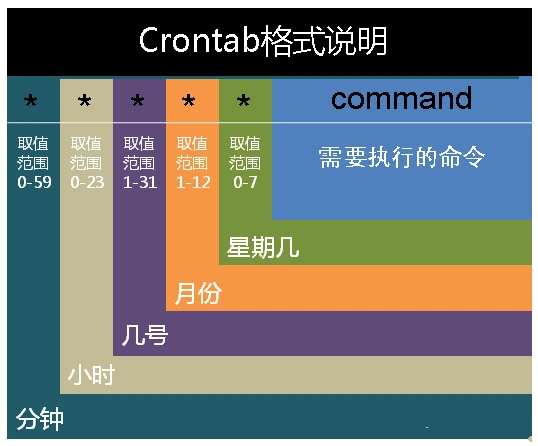
在以上各个字段中,还可以使用以下特殊字符:
case: 每隔2分钟,删除指定目录下,创建时间超过10个小时的文件
*/2 * * * * /bin/sh -c "find /tmp/hadoop-hdfs/mapred/local -cmin +600 -type d -exec rm -rf {} ;" >> /var/lib/hadoop-hdfs/auto_remove_mr_output.out
1、declare
declare -i 说明:
和 (())、let、$[] 不同,的功能非常有限,仅支持最基本的数学运算(加减乘除和取余),不支持逻辑运算(比较运算、与运算、或运算、非运算),所以在实际开发中很少使用。
declare -i m n retm=10n=30ret=$m+$necho $retret=$n/$mecho $ret
declare的作用域,只在函数内,出来后就失效了,如下:
#!/bin/bashfoo(){declare FOO="bar"}bar(){fooecho $FOO}bar
1、数组
Linux shell中数组的使用
数组有两种数据类型:
A). 一是数值类型;
B). 二是字符串类型.
虽然shell本身是弱类型的,但也可以这么区分。
数值类型的数组:一对括号表示数组,数组中元素之间使用“空格”来隔开。
举个列子:
arr_number=(1 2 3 4 5);
字符串类型数组:同样,使用一对括号表示数组,其中数组中的元素使用双引号或者单引号包含,同样使用“空格”来隔开。
arr_string=("abc" "edf" "sss"); 或者 arr_string=('abc' 'edf' 'sss');
#!/bin/basharr_number=(1 2 3 4 5)# ①、获取数组长度# 语法: ${#ARRAY_NAME[@|*]}echo 'arr_number length ='${#arr_number[@]}echo 'arr_number length ='${#arr_number[*]}# ②、根据下标访问数组元素(注意:下标与java语法类似,从0开始)# 2nd key's valueecho "2nd key's value ="${arr_number[1]}# ③、分片访问echo ${arr_number[@]:0:6}# ④、模式替换echo ${arr_number[@]/3/33}# ⑤、数组的遍历for e in ${arr_number[@]}doecho $edone# ⑥、综合案例# 编注:数组默认分割符为空格,如果数组元素中本身包含空格,也会被截断,这里通过改变IFS(系统字段分割# 符默认为空格)为换行,达到分割数组的目的。greet=('hello world' "hi,john")OLD_IFS=$IFSIFS=' 'for e in ${greet[@]}doecho $edoneIFS=$OLD_IFS
》①、批量删除日志:
for i in in {1..10}; do rm -f hadoop-cmf-hive-HIVEMETASTORE-nn1.testhdp.com.log.out.$i;done
》②、批量将日志置空:
for i in in {1..10}; do cat /dev/null > hadoop-cmf-yarn-NODEMANAGER-dn8.hadoop.com.log.out.$i;done
2、字典dict 或 Map
1). 声明字典类型:
declare -A dic
这里一定要-A来声明,-a只能用来声明数组类型。
2). 字典赋初值
dic=([key1]="value1" [key2]="value2" [key3]="value3")
3). 字典动态赋值
dic['key']=value
4). 打印指定key的value
echo ${dic['key']}
5). 打印所有key值
echo ${!dic[*]}
6). 打印所有value
echo ${dic[*]}
7). 遍历key值
for key in $(echo ${!dic[*]})
do
echo "$key : ${dic[$key]}"
done
8). 综合案例
#! /bin/sh#输入格式为一行一个单词declare -A dictdict=([k1]="v1" [k2]="v2")echo ${dict["k1"]}echo ${!dict[*]}echo ${dict[*]}for key in ${!dict[*]}doecho "$key : ${dict[$key]}"doneset -xaa="null"bb=cc=''# -z 字符串为"null".就是长度为0. -n 字符串不为"null" 注意: 使用-n在[]结构中测试必须要用""把变量引起来.使用一个未被""的字符串来使用! -z 或者就是未用""引用的字符串本身,放到[]结构中。虽然一般情况下可 以工作,但这是不安全的.习惯于使用""来测试字符串是一种好习惯.if [ -n "$cc" ];thenecho "aa is not null"fiset +x#定义字典类型变量declare -A dict#从标准输入读取while read worddo#若key为word的变量不存在,则为未定义,即第一次遇到此word,则将此word加入字典并设置其value为1。,否则自增value值if [ ! -n dict[${word}] ];thendict[${word}]=1else((dict[${word}]++))fidone#打印统计结果echo -e "word count"for key in $(echo ${!dict[*]})doecho -e "$key ${dict[$key]}"done
综合案例二: shell的map简单的添加、查找、删除、遍历
3、管道输出中执行下一条指令
ps -ef | grep 'new-consumer' | awk '{print $2}' |xargs kill -9 #删除kafka consumer进程ps -ef|grep java|grep -v grep|awk '{print $2}'|xargs kill -9 #删除java进程 find /opt/flume-custom/ -name *.conf|xargs grep -re "127.0.0.1:9092" #查找到的文件中查找指定字符串find /opt/ -type f -name '*.log' |xargs grep 'db.hostname'cat ~/.ssh/id_rsa.pub | ssh my_admin@111.111.111.111 "cat - >> ~/.ssh/authorized_keys"kill -9 $(ps -ef|grep "sh *start_new.sh *main"|grep -v grep|awk '{print $2}') # *表任意多空格kill -9 `ps -ef|grep data-integration|awk '{print $2}'`ls|while read f;do zip -r ${f}.zip $f;done #压缩所有ls出来的文件夹ls|grep 'hadoop-cmf-yarn-RESOURCEMANAGER-nn1.hadoop.com.log.out.[0-9]{1,}'|while read f;do cat /dev/null > $f;done #将所有RESOURCEMANAGER日志文件内容置为空,文件尾缀为1个以上从0到9的数字,如1、2、9、12均能匹配查找到,在nn1上磁盘(/var/log/{hadoop-hdfs,hadoop-yarn})上日志一般都比较大# 查找10日前创建的文件,并情况其内容find . -type f -name '*oozie-instrumentation.log.*' -atime +10 | while read f;do cat /dev/null > $f;done#查看所有用户的crontab任务,其中"-I {}"参数,可以使用-i来等量实现cat /etc/passwd | cut -f 1 -d : |xargs -I {} crontab -l -u {}cat /etc/passwd | cut -f 1 -d : |xargs -i crontab -l -u {}# 查询当前目录下所有文件(含目录下文件)中包含关键字(sku)的文件路径, 滤重, 并过滤掉路径中含指定字符(000)grep -rn 'sku' * | awk -F ':' '{print $1}' | uniq | grep -v 000
注意:
xargs 的参数 “-n” 后接数字,表示一次传递几个参数给xargs
(pyspark) [david@cdh01 bin]$ echo '1 2 3 4'|xargs -n11234(pyspark) [david@cdh01 bin]$ echo '1 2 3 4'|xargs -n21 23 4(pyspark) [david@cdh01 bin]$ echo '1 2 3 4'|xargs -n31 2 34(pyspark) [david@cdh01 bin]$ echo '1 2 3 4'|xargs -n41 2 3 4
传送门:Shell基础知识》xargs详解
读取文件每一行,并循环做处理:
①、while read line
do
…
done < file
②、cat file | ${BIZ_LOGICAL}
综合实例:
ssh 127.0.0.1 <<EOFsudo sused -i 's/^Hostname=.*/Hostname=127.0.0.1/' /etc/zabbix/zabbix_agentd.confcat /etc/zabbix/zabbix_agentd.conf | grep Hostnameps -ef | grep zabbix | awk '{print $2}' | xargs kill -9/usr/sbin/zabbix_agentd -c /etc/zabbix/zabbix_agentd.confsleep 2ps -ef | grep zabbixexitexitEOF
4、循环、迭代逻辑控制
4.1 while循环语法(while...do...done)
#hdfs文件统计hdfs dfs -ls / | hdfs dfs -ls `awk '{print $8}'`/ | echo -e "`awk '{print $8}'`/ " | while read line ; do echo -e "$line `sudo -u hdfs hdfs dfs -ls -R $line | wc -l `" ;donehdfs dfs -ls / | hdfs dfs -ls `awk '{print $8}'`/ | awk '{ cmd="echo -e "$8"\ \ \ \ `sudo -u hdfs hdfs dfs -ls -R "$8"| wc -l`" ;cmd|getline ; print $0}'#jar包里统计包含指定字符的文件名ls;while read line;do cat /dev/null>$line; donels lib/* |while read line;do jar -tf $line|grep LogAnalysis; echo $line;done#hdfs文件大小统计排序hdfs dfs -du ${HDFS_PATH} | sort -rn | head -n 10 | awk '{printf("%.2f %.2f %s ",$1/1024/1024/1024," "$2/1024/1024/1024," "$3)}'#获取所有java程序的进程号ps -ef | while read line ; do if [[ $line =~ "java" ]] ;then echo $line | awk -F ' ' '{print $2}' ; fi ;done//循环所有文件,并添加header#!/bin/bashls OrderDetail_sysdate_* |while read file;dosed -i "1i\$(cat header.csv)" $filedone
综合案例:
清理日志文件夹中的日志文件,将其置为黑洞文件内容(即情况该文件)。
#!/bin/bash#先遍历本文件夹里文件夹dir_list=`ls`#对查询到的文件夹执行清空其内文件的操作for dir in $dir_list;doecho $dirls $dir/* | while read line;do echo $line; cat /dev/null > $line; donedone
for i in `seq 1 $(cat /proc/cpuinfo |grep "physical id" |wc -l)`; do dd if=/dev/zero of=/dev/null & done
pkill -9 dd
5、break 与 contine区别
如下代码所示:
#!/bin/bashfor i in a b c ddoecho -n $ifor j in `seq 10`doif test $j -eq 5;then#break# continue#break 2continue 2fiecho -n $jdone#换行echodone Program result:>>>>>>>>>>>>>> 1. break >>>>>>>>>>>>>>>>># a1234# b1234# c1234# d1234#>>>>>>>>>>>>>> 2. continue >>>>>>>>>>>>>>>>># a# b# c# d#>>>>>>>>>>>>>> 3. "break 2","break 3" has same effect >>>>>>>>>>>>>>>>># a1234#>>>>>>>>>>>>>> 4. "continue 2" >>>>>>>>>>>>>>>>># a1234# b1234# c1234# d1234
6、大文件拆分处理
文件拆分:
split -d -a 8 -l 10000 PayOrderDetail.csv PayOrderDetail_sysdate_.csv
用法:
详细案例,详见:split命令_Linux split命令:切割(拆分)文件
7、awk
#批量删除hdfs下ods层下所有数据
hdfs dfs -lsr /user/hive/warehouse/ods|awk '{print "hdfs dfs -rm -R" $8}'
8、实现脚本中切换用户并执行该用户相关的命令操作
假如当前用户为root账户,希望切换到其他用户下执行相关的操作,如有以下业务场景:
想以yarn用户身份,取删除yarn运行相关的早期用处不大的日志。
方式①、
#!/bin/bashsu - yarn <<EOF pwd; exit;EOF
方式②、
su - ${USER} -c ${COMMAND} > /dev/null 2>&1 &
注意:
该命令的执行权限是临时的,只在本条语句起作用。即在COMMAND命令行内部,是以$USER身份执行命令;执行结束后,回到初始状态用户,这里为root。
案例:
01-Handle logic of clean HDFS NAMENODE & DATANODE & audit logs.su - hdfs -c 'HDFS_PATH=/var/log/hadoop-hdfs;ls $HDFS_PATH | grep "hadoop-cmf-hdfs-NAMENODE-nn1.hadoop.com.log.out.[0-9]{1,}$" | while read f; do `cat /dev/null > $HDFS_PATH/$f`; done ;ls $HDFS_PATH | grep "hadoop-cmf-hdfs-DATANODE-nn1.hadoop.com.log.out.[0-9]{1,}$" | while read f; do `cat /dev/null > $HDFS_PATH/$f`; done ;ls $HDFS_PATH | grep "hdfs-audit.log.[0-9]{1,}$" | while read f; do `cat /dev/null > $HDFS_PATH/$f`; done'
注意:
① ls这段语句在命令行下执行没任何问题,提取到“su - hdfs -c”中时,`cat /dev/null > $HDFS_PATH/$f`这段必须要包裹上``符号,才能正常执行。
② -c 参数中,可以执行多行命令,但是需要几个条件:A). 所用命令使用''包裹,每一行命令间,使用";"来进行分隔。
补充su的用法:
[root@cdh-nn1 ~]# su --helpUsage:su [options] [-] [USER [arg]...]Change the effective user id and group id to that of USER.A mere - implies -l. If USER not given, assume root.Options:-m, -p, --preserve-environment do not reset environment variables-g, --group <group> specify the primary group-G, --supp-group <group> specify a supplemental group-, -l, --login make the shell a login shell-c, --command <command> pass a single command to the shell with -c--session-command <command> pass a single command to the shell with -cand do not create a new session-f, --fast pass -f to the shell (for csh or tcsh)-s, --shell <shell> run shell if /etc/shells allows it-h, --help display this help and exit-V, --version output version information and exitFor more details see su(1).
su 和 “su - ${USER}”的区别:
9、awk实现查找奇数行、偶数行:
10、IFS专题
IFS, 全称 内部字段分隔符(Internal Field Separator, IFS) , 作用是在Linux中定义一个定界符,默认是空格。
如果字符串中的分隔符,默认不是空格,而是逗号(如csv文件), 则可以考虑临时替换IFS为逗号,处理完文本处理任务后, 再将默认的修改回来.
如果脚本实现, 按","提取表名list:
batch_upsert_table_process.sh
#!/bin/bashinclude_tables="activity_info,activity_rule,activity_sku,base_category1,base_category2,base_category3,base_province,base_region,base_trademark,coupon_info,coupon_range,coupon_use,financial_sku_cost,sku_info,spu_info,user_info"function get_element_by_split_comma(){ifs_old=$IFSIFS=","for tbl in $(echo "${include_tables}");doecho 'Now is handle table >>>>>>>>>>>>>>>>>>>>> '$tbl/data/maxwell/bin/maxwell-bootstrap --database gmall --table $tbl --config /data/maxwell/tf_custom_config/gmall_rtdw_test.propertiesdone#Recovery IFS to defaultIFS=$ifs_old}get_element_by_split_comma
1、在shell中显示色彩
语法格式:
echo -e "033[颜色1:颜色2m 要展示的文字 033[0m"
参数说明:
-----------------------------------------------------------------------------------------------------------------------
-----------------------------------------------------------------------------------------------------------------------
图示说明:
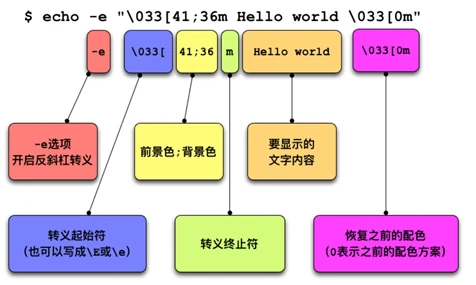
颜色码:
1、字符串转化为数字
案例1: 将日期中以0开头的数字字符串转换为数字
比如今日为2022-03-25, 如果想获取月份, 可以使用 echo $(date +%m) 或 echo `date +%m`, 将获取到字符串"03", 但我们想要去掉开头0的3, 翻遍date的api都没有找到.
这时候可以考虑使用数学运算将原字符串 与 一个数字0相加, 变相通过数学计算获取到整形的计算结果.
[hdfs@hadoop test]$ echo $(expr $(date +%m) + 0)3[hdfs@hadoop test]$ echo `expr $(date +%m) + 0`3[hdfs@hadoop test]$ hive --hivevar year=$(date +%Y) --hivevar month=`expr $(date +%m) + 0` -f /data/program/test_hive.hql
test_hive.hql中则可以使用上述动态传参的值:
ALTER TABLE ads.my_partition_table_test DROP IF EXISTS PARTITION(year=${hivevar:year}, month=${hivevar:month});
登录shell:使用linux账户登录后执行的shell
非登录shell:不经登录,直接使用shell,如ssh 远程连接到主机后执行的shell
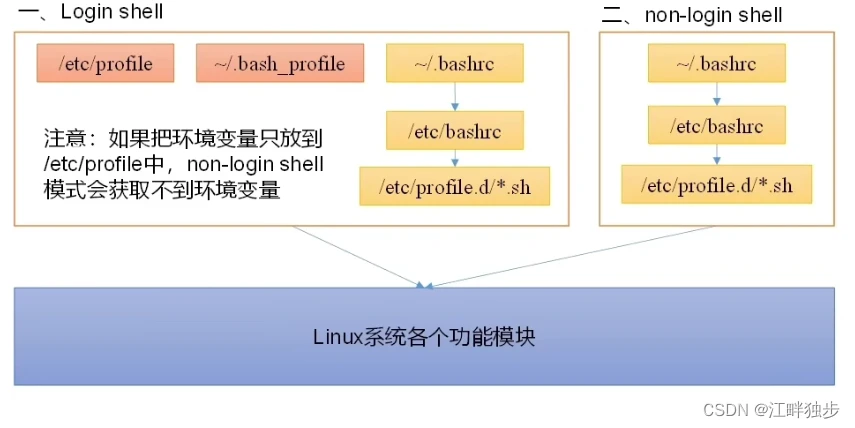
注意:
- 如果将环境变量配置信息,配置在/etc/profile中,对于非登录shell,则获取不到。
- 而对于/etc/profile.d/*.sh,则对于2种shell,都可以访问到。
Centos系统服务器脚本目录位置:/usr/lib/systemd/
其内部有系统(system)和用户(user)2个文件夹,如需要开机不登录即要求能执行的程序,在系统服务(system)里,即/usr/lib/systemd/system;
而如果需要用户登录之后才可以运行的程序,在用户服务(user)里,即/usr/lib/systemd/user。
这里以nginx服务开启自启为例:
[Unit]Description=Nginx restart on RebootAfter=network.target[Service]Type=forkingUser=nginxGroup=nginxExecStart=/etc/init.d/nginx startExecReload=/etc/init.d/nginx restartExecStop=/etc/init.d/nginx stopPrivateTmp=true[Install]WantedBy=multi-user.target
参数说明:
- Description:描述服务
- After:描述本服务的上游依赖关系,即上游启动完毕后,才可以启动本服务
- [Service]服务运行参数的设置
- Type=forking是后台运行的形式
- User服务启动用户
- Group服务启动用户组
- ExecStart为服务的具体运行命令
- ExecReload为重启命令
- ExecStop为停止命令
- PrivateTmp=True表示给服务分配独立的临时空间
注意:
- [Service]的启动、重启、停止命令全部要求使用绝对路径
- [Install]服务安装的相关设置,可设置为多用户
一般文件以644权限进行保存,如下:
设置开机自启动命令:systemctl enable nginx.service
>> 如果查看systemctl启动服务的log信息?
Service启动之后, 如果想查询其详细日志信息, 可以使用类似tail的命令, 使用journalctl -f 可以来实时追踪日志.
使用journalctl可以查看使用systemctl启动的service,常用参数有两种, 如下:
①. 显示多个混合在一起的systemctl 服务日志, 一般刚启动完一个service时查看比较方便
journalctl -f
②. 只查看某一个具体的service服务的日志
journalctl -u 服务名如:2021-11-10 10:06:37 nn1 systemd: Started Bigdata KafkaManager.2021-11-10 10:06:37 nn1 kafka-manager: This application is already running (Or delete /opt/software/kafka-manager-1.3.3.23/RUNNING_PID file).2021-11-10 10:06:37 nn1 systemd: bigdata_kafkaManager.service: main process exited, code=exited, status=255/n/a2021-11-10 10:06:37 nn1 systemd: Unit bigdata_kafkaManager.service entered failed state.2021-11-10 10:06:37 nn1 systemd: bigdata_kafkaManager.service failed.2021-11-10 10:06:46 nn1 bigdata_admin: root [/etc/systemd/system]2021-11-10 10:06:46 systemctl is-enabled bigdata_kafkaManager.service2021-11-10 10:06:52 nn1 systemd: Reloading.2021-11-10 10:06:53 nn1 systemd: [/run/systemd/generator.late/cloudera-scm-server.service:13] Failed to add dependency on +cloudera-scm-server-db.service, ignoring: Invalid argument2021-11-10 10:06:53 nn1 systemd: [/etc/systemd/system/bigdata_kafkaManager.service:15] Unknown lvalue 'StartLimitIntervalSec' in section 'Service'2021-11-10 10:06:53 nn1 bigdata_admin: root [/etc/systemd/system]2021-11-10 10:06:52 systemctl disable bigdata_kafkaManager.service2021-11-10 10:07:02 nn1 systemd: Stopped Bigdata KafkaManager.2021-11-10 10:07:02 nn1 systemd: [/etc/systemd/system/bigdata_kafkaManager.service:15] Unknown lvalue 'StartLimitIntervalSec' in section 'Service'2021-11-10 10:07:02 nn1 systemd: [/etc/systemd/system/bigdata_kafkaManager.service:15] Unknown lvalue 'StartLimitIntervalSec' in section 'Service'2021-11-10 10:07:02 nn1 bigdata_admin: root [/etc/systemd/system]2021-11-10 10:07:02 systemctl stop bigdata_kafkaManager.service
③. 通过 "系统日志" 来进行查询
tail -100f /var/log/message2021-11-10 10:06:37 nn1 systemd: Started Bigdata KafkaManager.2021-11-10 10:06:37 nn1 kafka-manager: This application is already running (Or delete /opt/software/kafka-manager-1.3.3.23/RUNNING_PID file).2021-11-10 10:06:37 nn1 systemd: bigdata_kafkaManager.service: main process exited, code=exited, status=255/n/a2021-11-10 10:06:37 nn1 systemd: Unit bigdata_kafkaManager.service entered failed state.2021-11-10 10:06:37 nn1 systemd: bigdata_kafkaManager.service failed.2021-11-10 10:06:46 nn1 bigdata_admin: root [/etc/systemd/system]2021-11-10 10:06:46 systemctl is-enabled bigdata_kafkaManager.service2021-11-10 10:06:52 nn1 systemd: Reloading.2021-11-10 10:06:53 nn1 systemd: [/run/systemd/generator.late/cloudera-scm-server.service:13] Failed to add dependency on +cloudera-scm-server-db.service, ignoring: Invalid argument2021-11-10 10:06:53 nn1 systemd: [/etc/systemd/system/bigdata_kafkaManager.service:15] Unknown lvalue 'StartLimitIntervalSec' in section 'Service'2021-11-10 10:06:53 nn1 bigdata_admin: root [/etc/systemd/system]2021-11-10 10:06:52 systemctl disable bigdata_kafkaManager.service2021-11-10 10:07:02 nn1 systemd: Stopped Bigdata KafkaManager.2021-11-10 10:07:02 nn1 systemd: [/etc/systemd/system/bigdata_kafkaManager.service:15] Unknown lvalue 'StartLimitIntervalSec' in section 'Service'2021-11-10 10:07:02 nn1 systemd: [/etc/systemd/system/bigdata_kafkaManager.service:15] Unknown lvalue 'StartLimitIntervalSec' in section 'Service'2021-11-10 10:07:02 nn1 bigdata_admin: root [/etc/systemd/system]2021-11-10 10:07:02 systemctl stop bigdata_kafkaManager.service2021-11-10 10:07:24 nn1 bigdata_admin: root [/etc/systemd/system]2021-11-10 10:07:08 watch free -g2021-11-10 10:07:24 nn1 bigdata_admin: root [/etc/systemd/system]2021-11-10 10:07:08 watch free -g2021-11-10 10:07:24 nn1 bigdata_admin: root [/etc/systemd/system]2021-11-10 10:07:08 watch free -g2021-11-10 10:18:20 nn1 bigdata_admin: root [/etc/systemd/system]2021-11-10 10:08:19 tail -100f /var/log/messages
watch -d -n 1 ls -l
参数说明:
①、-n:默认为2s刷新一次,通过-n 参数更新刷新频次;
②、-d:方便查看输出与上次的不同之处。
参考博文列表:
- Linux常用命令大全(非常全!!!) - fcyh - 博客园
- shell中break 与 continue - 亮哥vvv - 博客园
- crontab用法与实例 | 《Linux就该这么学》
- 最详细的CentOS7设置自定义开机启动服务教程 - 简书(centos7设置自定义开机启动)
- Centos7允许3306端口通过防火墙_vv小飞的专栏-CSDN博客_centos 允许端口(Centos7允许3306端口通过防火墙)
- Linux字符截取命令-cut_小工匠-CSDN博客(cut文本处理)
- 服务器日志 之 CentOS7日志管理工具 journalctl - 简书(服务器日志 之 CentOS7日志管理工具 journalctl)
- echo 在shell及脚本中显示色彩及闪烁警告效果 - 南清风 - 博客园(echo 在shell及脚本中显示色彩及闪烁警告效果)
- Linux命令大全(排版清晰!!持续更新!!非常详细)
- Linux sort命令详解
版权声明:
本文来自互联网用户投稿,该文观点仅代表作者本人,不代表本站立场。本站仅提供信息存储空间服务,不拥有所有权,不承担相关法律责任。
如若内容造成侵权、违法违规、事实不符,请将相关资料发送至xkadmin@xkablog.com进行投诉反馈,一经查实,立即处理!
转载请注明出处,原文链接:https://www.xkablog.com/rfx/30504.html